
Attach a file in Web SMS
Learn how Web SMS turns a file into a short link in the message and what you should check before sending.
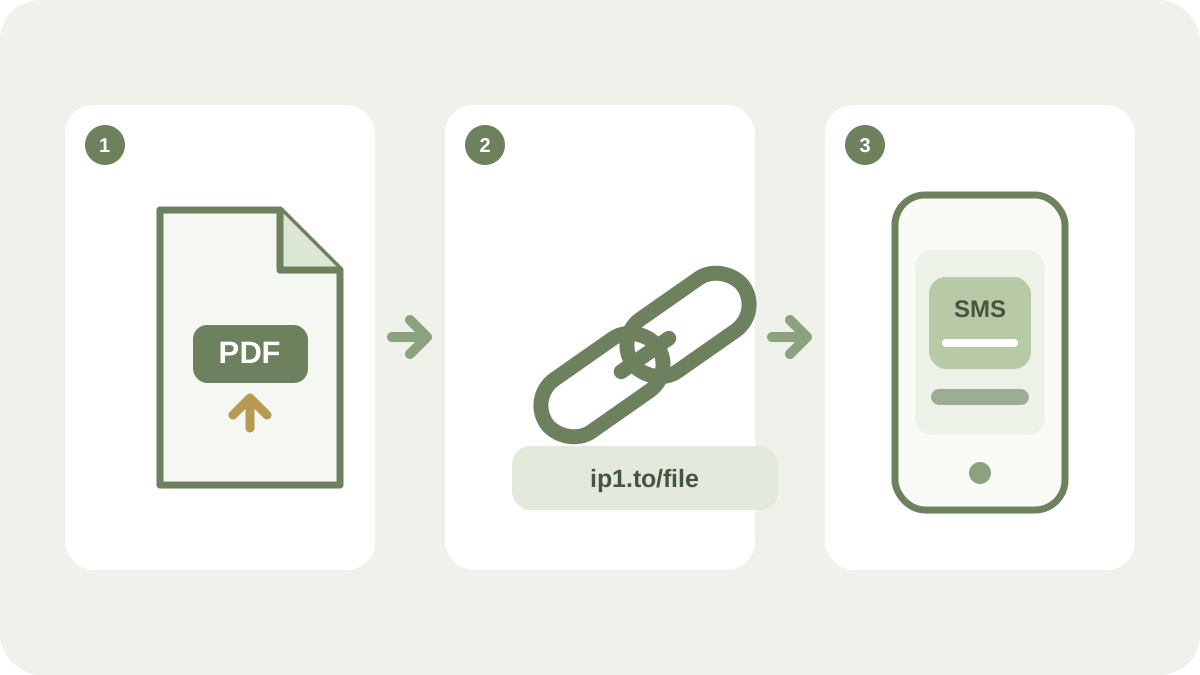
An SMS cannot carry a traditional attachment in the same way as an email. In Web SMS, you can solve this by uploading the file and letting the service create a short link that is inserted into the message.
The recipient opens the link in their mobile browser and can access the file there. This makes the feature useful for instructions, programmes, product sheets and other information that needs more space than an SMS.
How to attach the file
- Create a new message in Web SMS.
- Select the option to attach a file and upload the document.
- Web SMS creates a short link and places it in the message.
- Move the link elsewhere in the text if that makes the message clearer.
- Send a test to yourself and check the link on your phone.
Give the recipient a reason to click
Explain what the link leads to. A web address on its own creates uncertainty, while a brief explanation makes the action clear:
View the programme before the meeting: [short link]
Use a clear sender name and only send files that the recipient expects. Also check that the content works well on a small screen and that the file size is reasonable for a mobile connection.
Keep the SMS length in mind
The short link counts towards the message’s character total. Keep the introduction concise and check how many SMS parts the message uses before sending it to a larger group.
On the product page, you can learn more about Web SMS and its features. For recurring messages, you can combine the file with personalised contact data and a saved text template.