
Install Web SMS and pin it to the taskbar
Learn how to install iP.1 Web SMS as a web app in Chrome or Edge and add a quick shortcut directly to the taskbar.
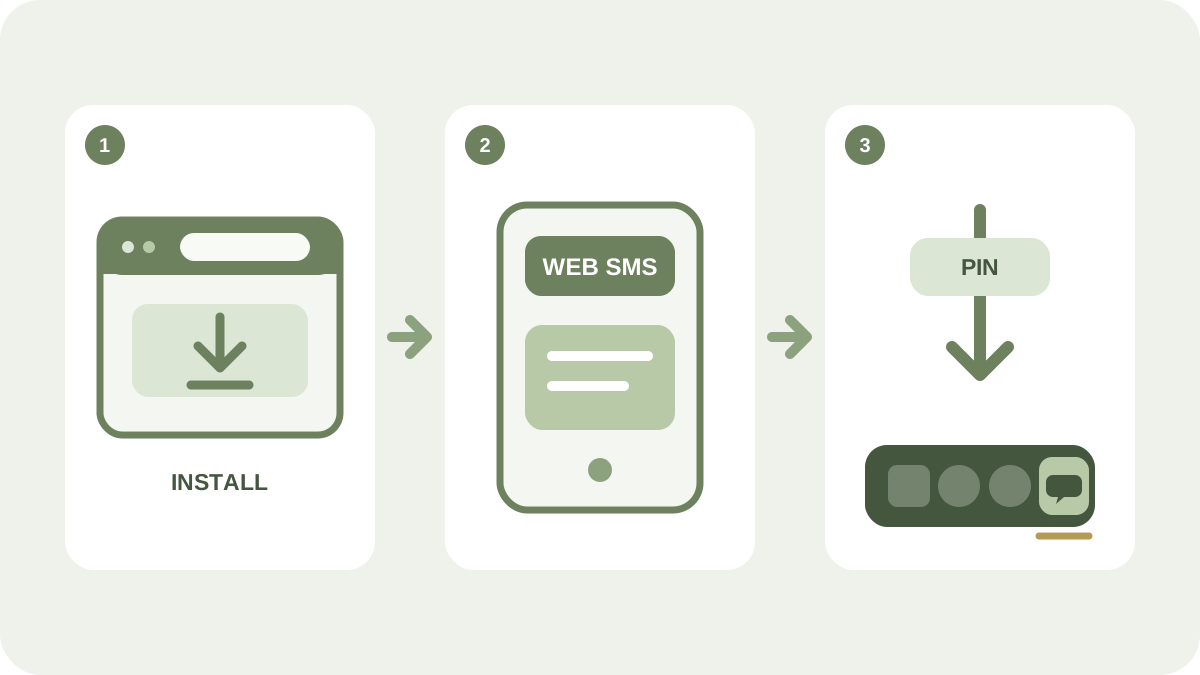
Web SMS runs in the browser, but it can also be installed as a web app in Windows. This gives the service its own window and lets you pin it to the taskbar. You can reach the same workspace more quickly without first having to find a browser tab.
Install Web SMS in Google Chrome
- Open messages.ip1.net and sign in.
- Look for the install icon on the right-hand side of the address bar. It is usually shown as a screen with a downward-pointing arrow.
- Choose to install or pin iP.1 Web SMS and confirm.
- Right-click the Web SMS icon on the taskbar and choose to pin it if Windows has not already done so.
Install Web SMS in Microsoft Edge
- Open messages.ip1.net and sign in.
- Click the app icon on the right-hand side of the address bar. In Edge, it may appear as a package with a plus sign.
- Confirm that you want to install Web SMS.
- Choose to pin the app to the taskbar when Edge asks.
The browser interface may change between versions. If the icon is not visible, open the browser menu and look for Install app, Apps or the equivalent option.
The same service, with a shorter route
The installed web app still uses the web service. Contacts, text templates, scheduled messages and delivery statuses therefore remain in the same place and continue to update as usual.
Learn more about the features on the Web SMS page. You can also continue with the guides on attaching files in Web SMS and personalising SMS with contact data.